
Tutorial ⑤ Counter and Running Head Styles
Edit your CSS to configure counters and running heads.
Goals of This Tutorial
- Understand how to configure counters
- Understand how to reference counters
- Understand how to configure page numbers (nombré)
- Understand how to configure running heads
Configuring Counters
CSS counters are counter variables you can use in CSS. With CSS counters you can automatically number headings and pages. Reference: Using CSS counters (MDN Web Docs)
Use the counter-reset property to initialize a counter value, and counter-increment to increment it. To output a counter value, use the counter() or counters() function in the content property.
Heading Numbers
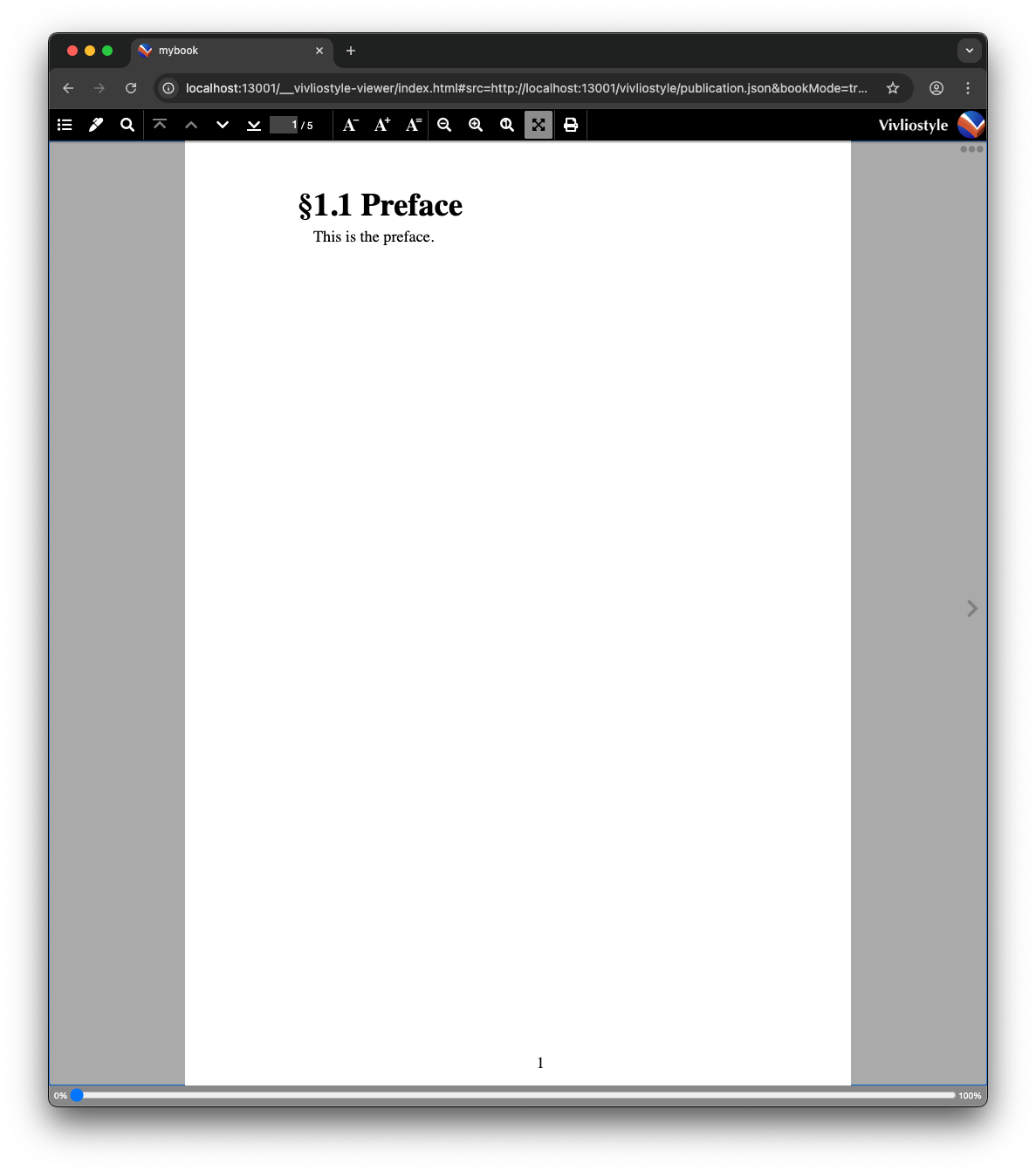
To assign chapter (chapter) and section (section) numbers to h1, use the following approach.
@page :first { /* the first page across all manuscript files */
  counter-reset: chapter;
}

@page :nth(1) { /* the first page of each individual manuscript file */
  counter-increment: chapter;
}

body { /* each manuscript file */
  counter-reset: section;
}

h1 {
  counter-increment: section;
}

h1::before {
  content: '§' counter(chapter) '.' counter(section) ' ';
}
Page Numbers
Vivliostyle maintains its own counter for page numbers, so you can obtain the page number without creating a new counter. The counter name is page.
Using target-counter(), you can automatically retrieve the page number of a link target.
a.page-ref::after {
  content: 'p.' target-counter(attr(href), page);
}
In Markdown, write it as follows:
See <a href="#section-id" class="page-ref"></a> for details.
Counter References
The target-counter() function lets you reference the value of a counter at another location in the document. For example, you can place a reference link to a figure in the body text and have it automatically display that figure’s number.
a.fig-ref::after {
  content: 'Figure ' target-counter(attr(href), figure) '.';
}
In Markdown, write it as follows:
See <a href="#fig-caption" class="fig-ref"></a> for details.
You can use target-counter() for page number references in the same way. In Tutorial ⑦, we show how to use target-counter() to automatically insert the destination page number for each entry in a table of contents.
Page Margin Boxes
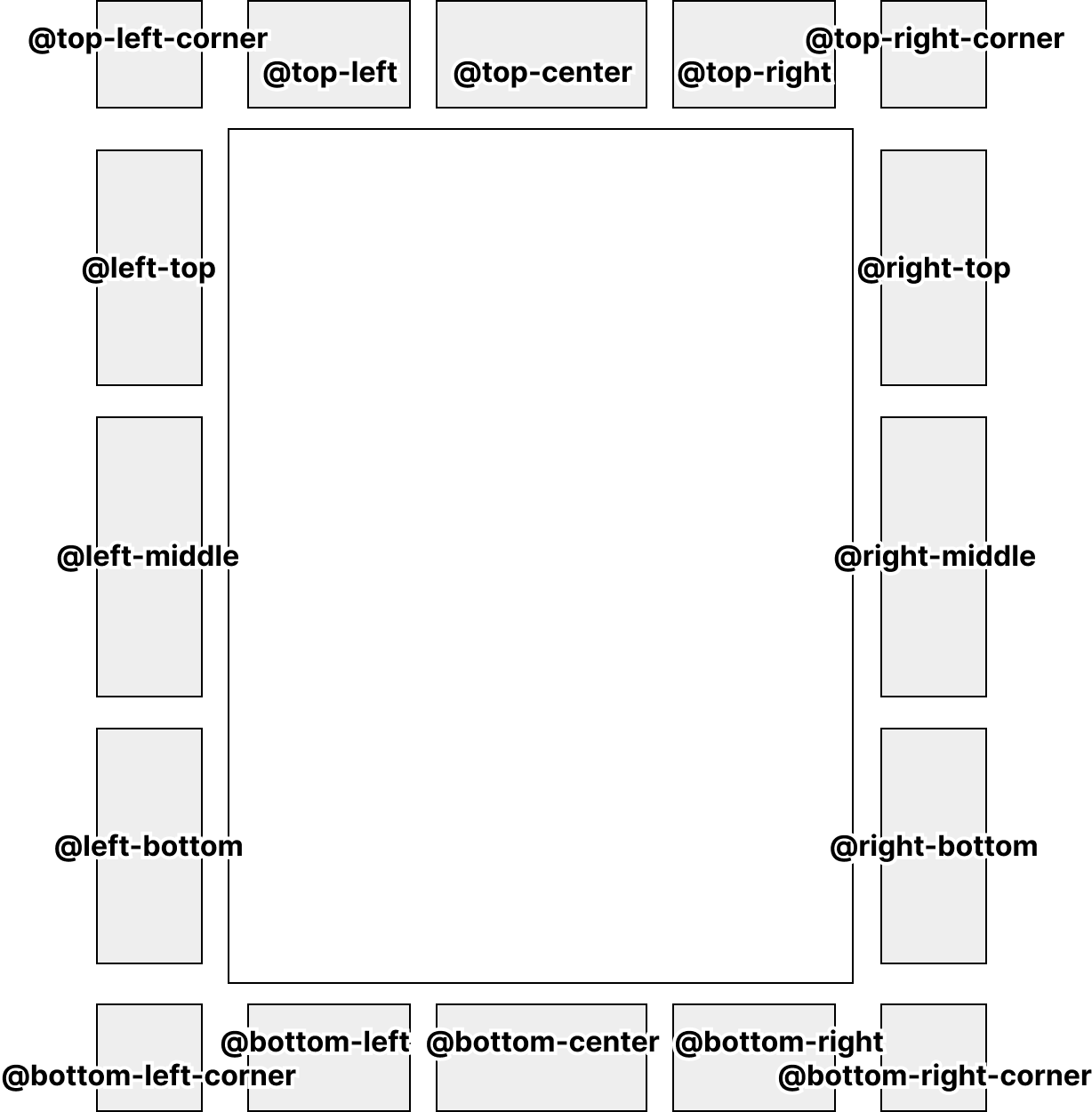
Page margin boxes are regions available for use as page headers or footers, defined in CSS Paged Media. There are 16 types of page margin boxes in total. They are used together with @page rules.
Nombré (Page Number) Style
A nombré is a page number placed at the bottom or side of a page.
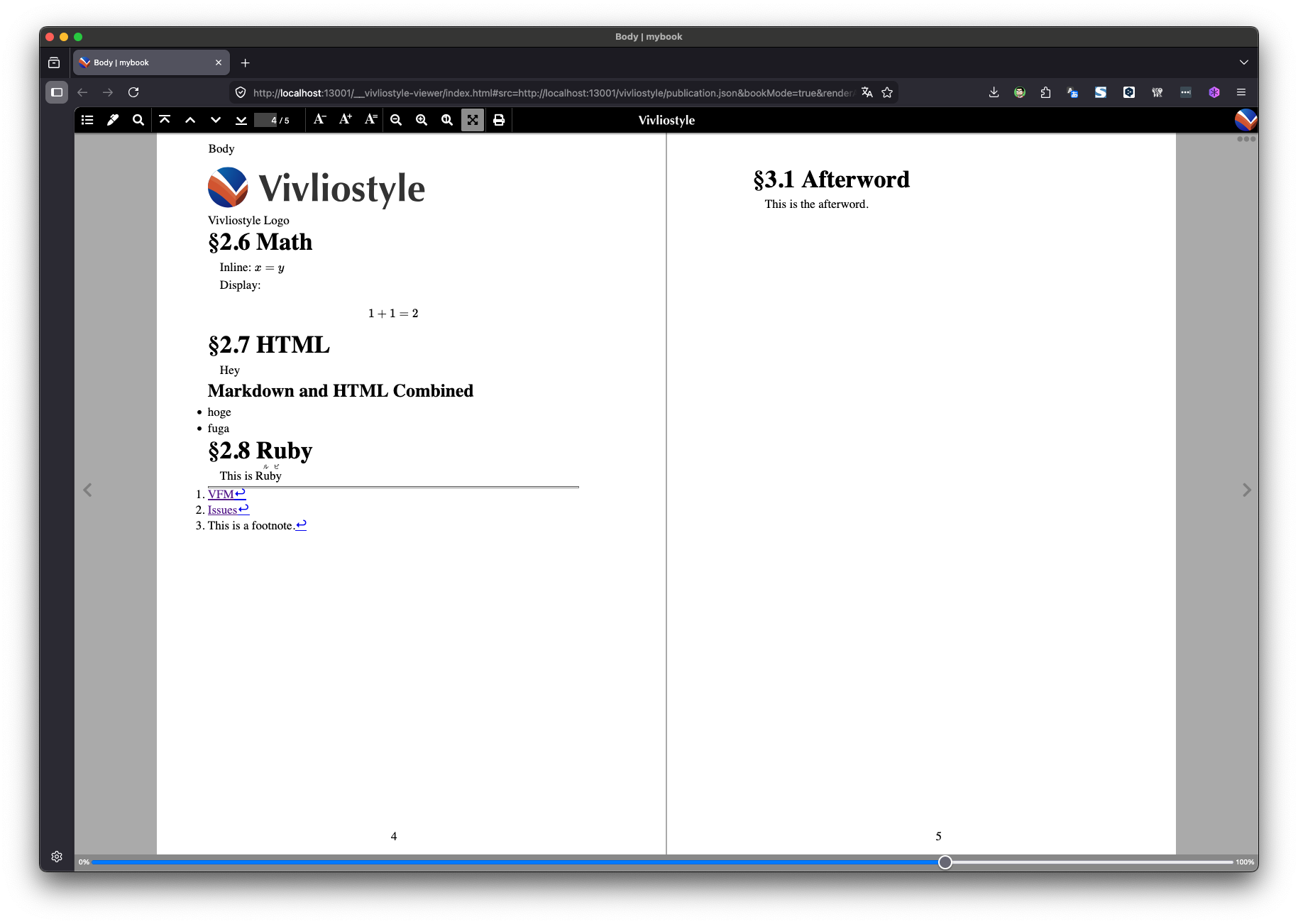
Nombré is written using page margin boxes. The following places the page number centered at the bottom of every page.
@page {
  @bottom-center {
    content: counter(page);
  }
}
Running Head Style
A running head is text placed at the top or side of a page, typically showing the book title or chapter name.
Running heads are also written using page margin boxes. The following places the chapter title at the top-left of left-hand pages.
@page :left {
  @top-left {
    content: env(doc-title);
  }
}
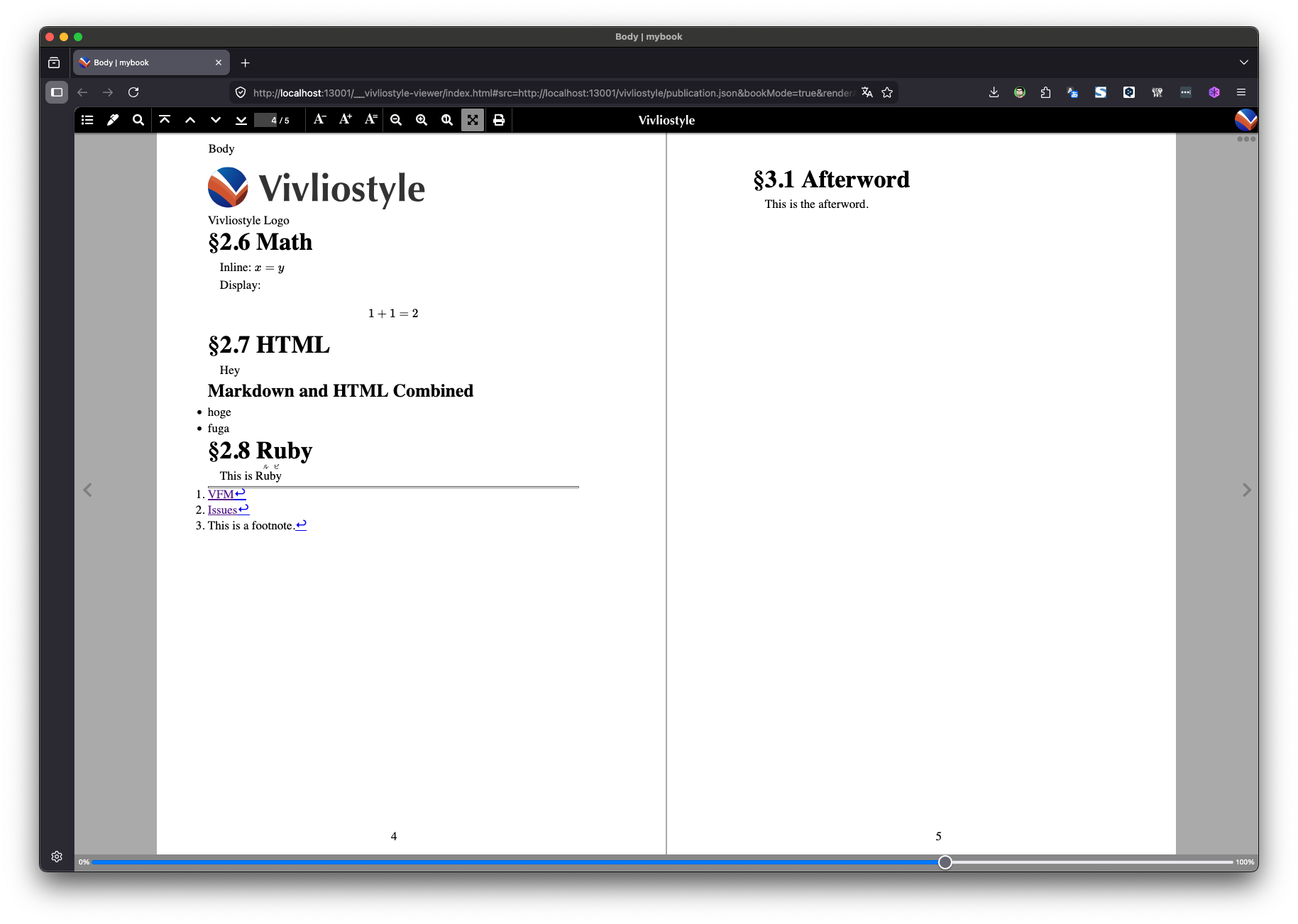
Vivliostyle has special variables env(pub-title) and env(doc-title). These let you output the book title and chapter title respectively. When producing a PDF from multiple manuscript files, env(pub-title) is the book title and env(doc-title) is the title of each individual manuscript file.
In addition, you can also configure running heads using Named strings or Running elements.
Named strings capture the content of an element as a string using the string-set property, and display it in a page margin box using the string() function.
h1 {
  string-set: chapter-title content(text);
}

@page :left {
  @top-left {
    content: string(chapter-title);
  }
}
Running elements remove an element from the page flow using position: running(name) and display it in a page margin box using element(name). This allows you to use the style and structure of an HTML element directly as a running head.
.running-title {
  position: running(chapter-header);
}

@page :right {
  @top-right {
    content: element(chapter-header);
  }
}
Reference: CSS Generated Content for Paged Media (W3C)
Summary
In this tutorial you configured counters and running heads. Download the theme.css with all the styles described above using the button below.