
Tutorial ④ Page and Text Styles
Edit your CSS to configure page and text styles.
Goals of This Tutorial
- Understand how to configure page settings
- Understand how to configure text settings
Files Used in This Tutorial
We have prepared the files for the following tutorials. Download vivliostyle.config.js, the manuscript files, and the style file using the buttons below and place them inside your mybook directory.
mybook/
├── package.json
├── vivliostyle.config.js (*overwrites existing file)
├── manuscripts/ (*overwrites existing files)
│   ├── preface.md
│   ├── body.md
│   └── afterword.md
└── themes/
    └── mytheme/ (*overwrites existing files)
themes/mytheme/theme_common.css contains CSS that resets the default styles applied by the browser.
* {
  margin: 0;
  padding: 0;
  box-sizing: border-box;
}
Run the following command in your terminal to see a PDF with almost no styles applied.
npm run preview
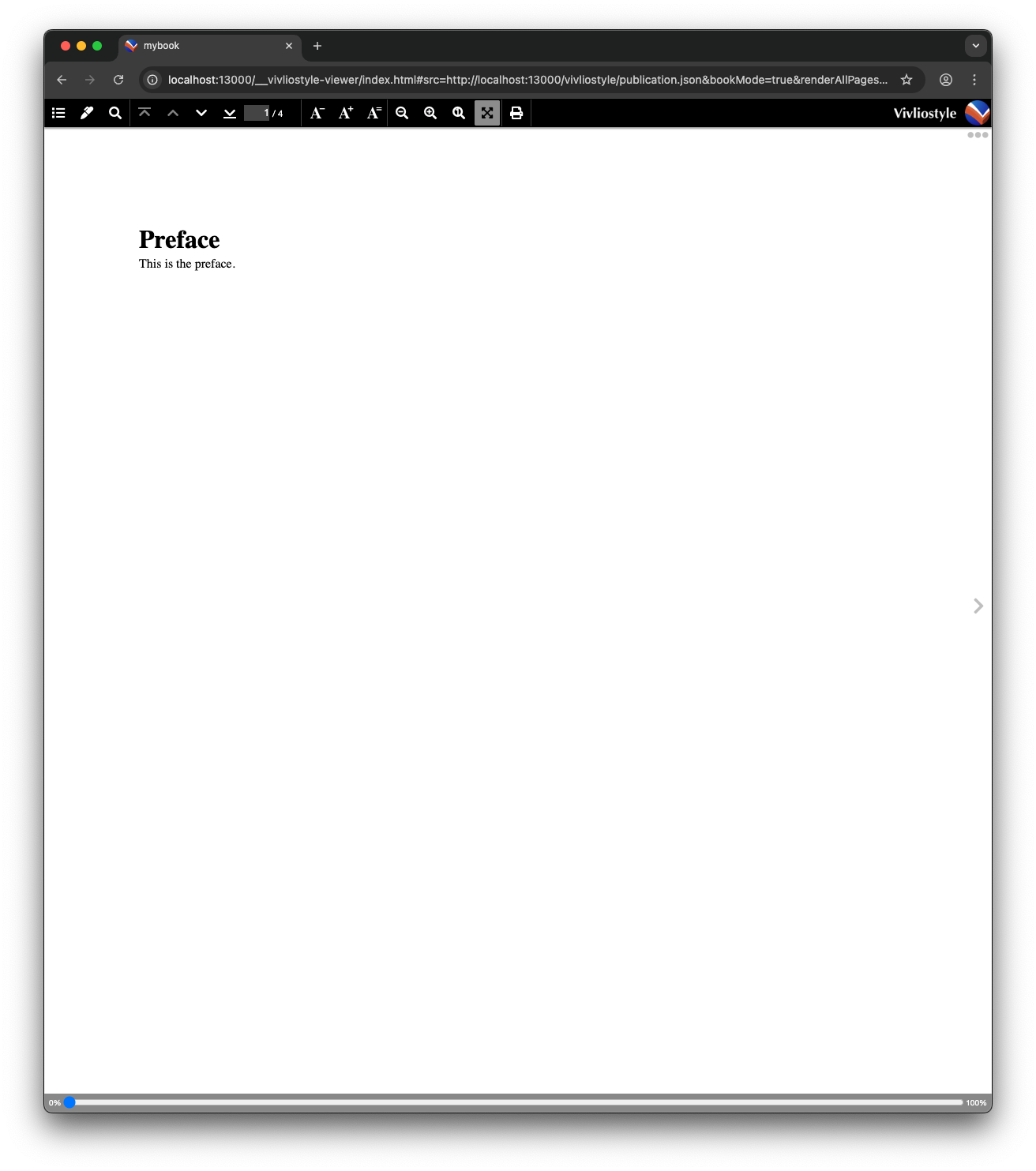
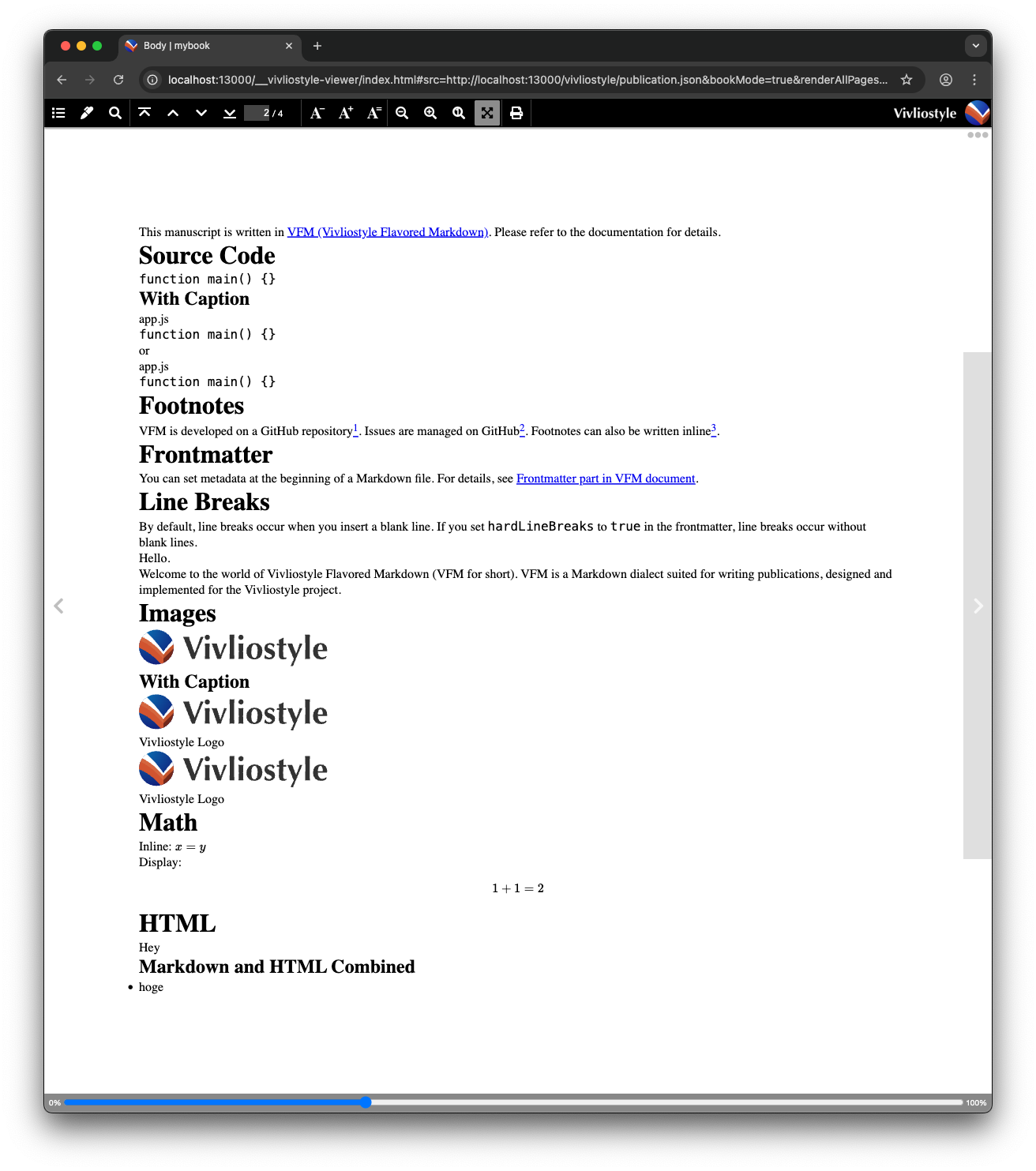
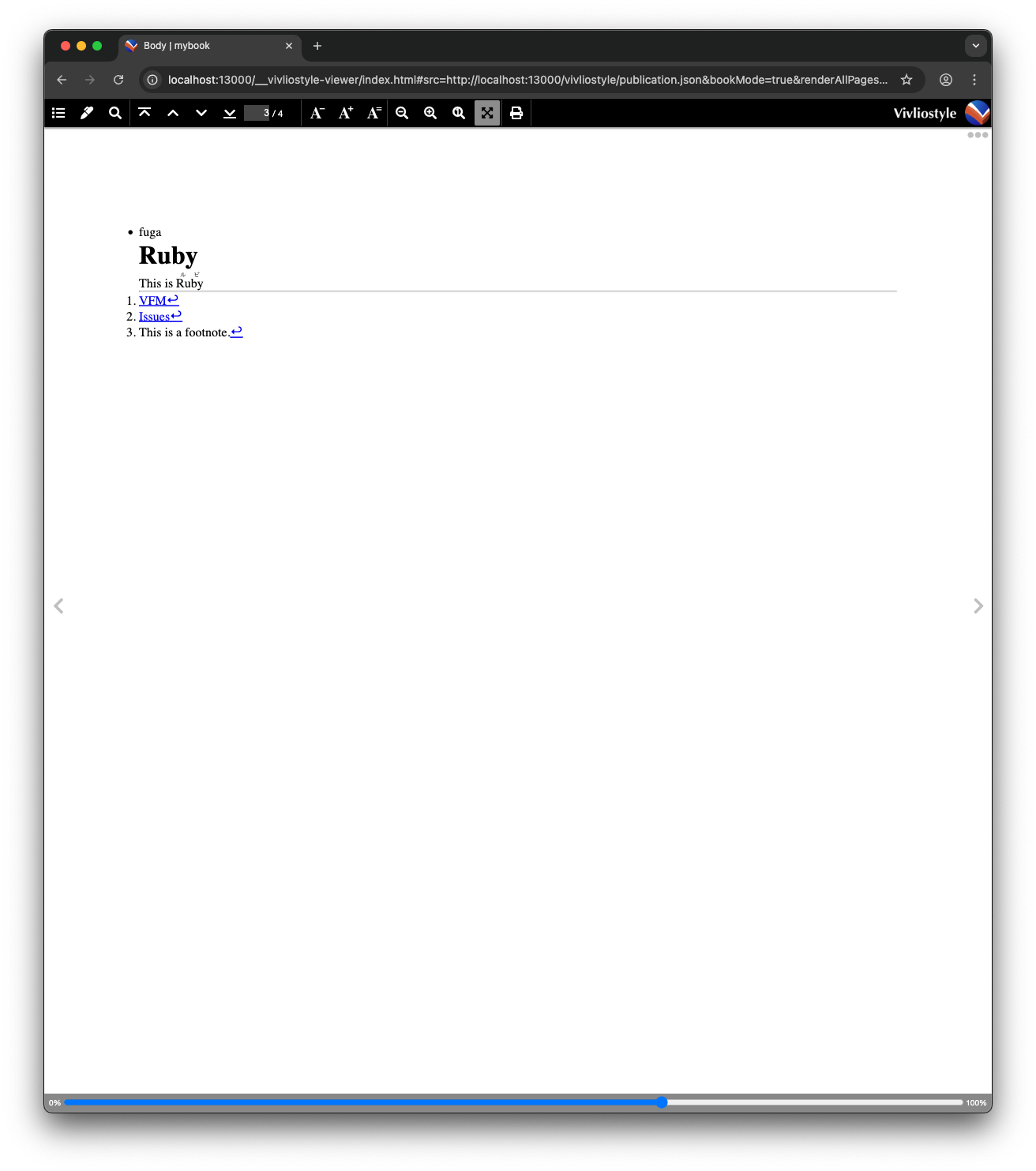
Throughout this tutorial, you will use CSS to style this bare-bones book. CSS is written in themes/mytheme/theme_common.css.
Page Styles
Page settings are written using the @page rule.
Paper Size
Use the size descriptor.
@page {
  size: 148mm 210mm; /* A5 size */
}
Margins
Use the CSS margin property.
@page {
  margin: 10mm 15mm;
}
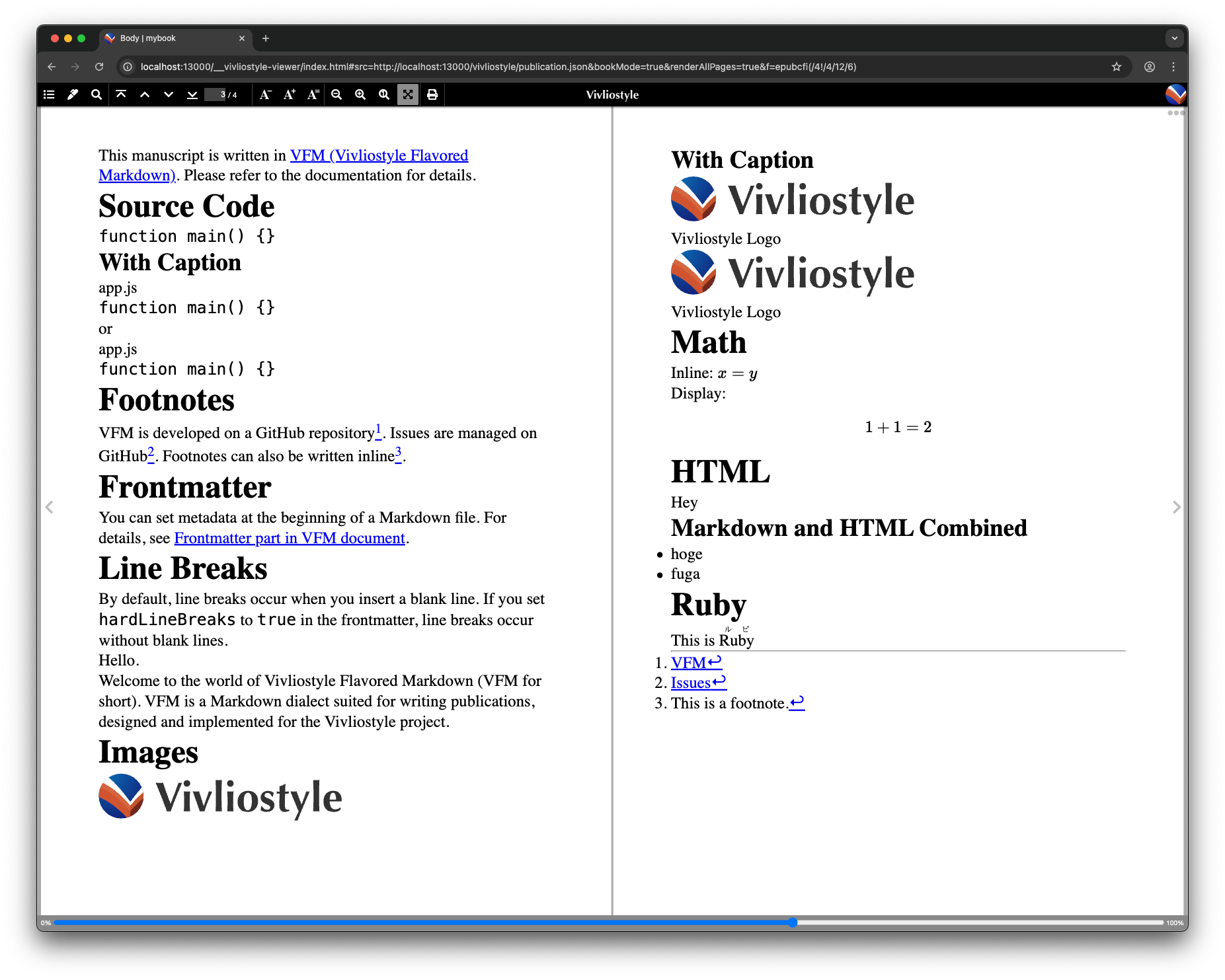
For books that are bound, you may want a wider margin on the spine (binding) side. You can use @page :left and @page :right to set styles separately for left-hand and right-hand pages.
@page :left { /* widen the right margin of left-hand pages */
  margin-right: 25mm;
}

@page :right { /* widen the left margin of right-hand pages */
  margin-left: 25mm;
}
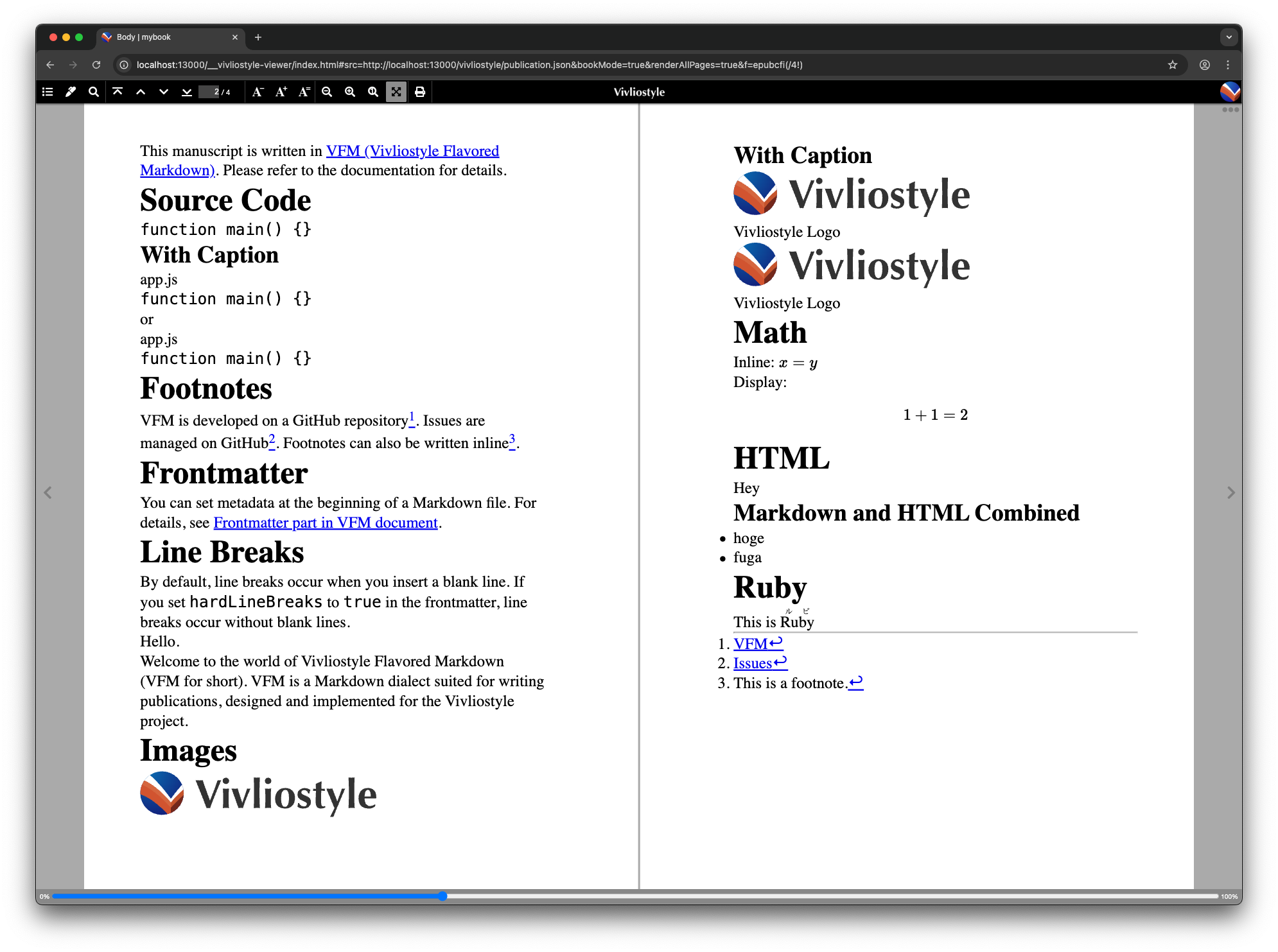
Reference: CSS組版 with Vivliostyleでゼロから版面設計をやってみよう (libroworks.co.jp)
Page Start Side
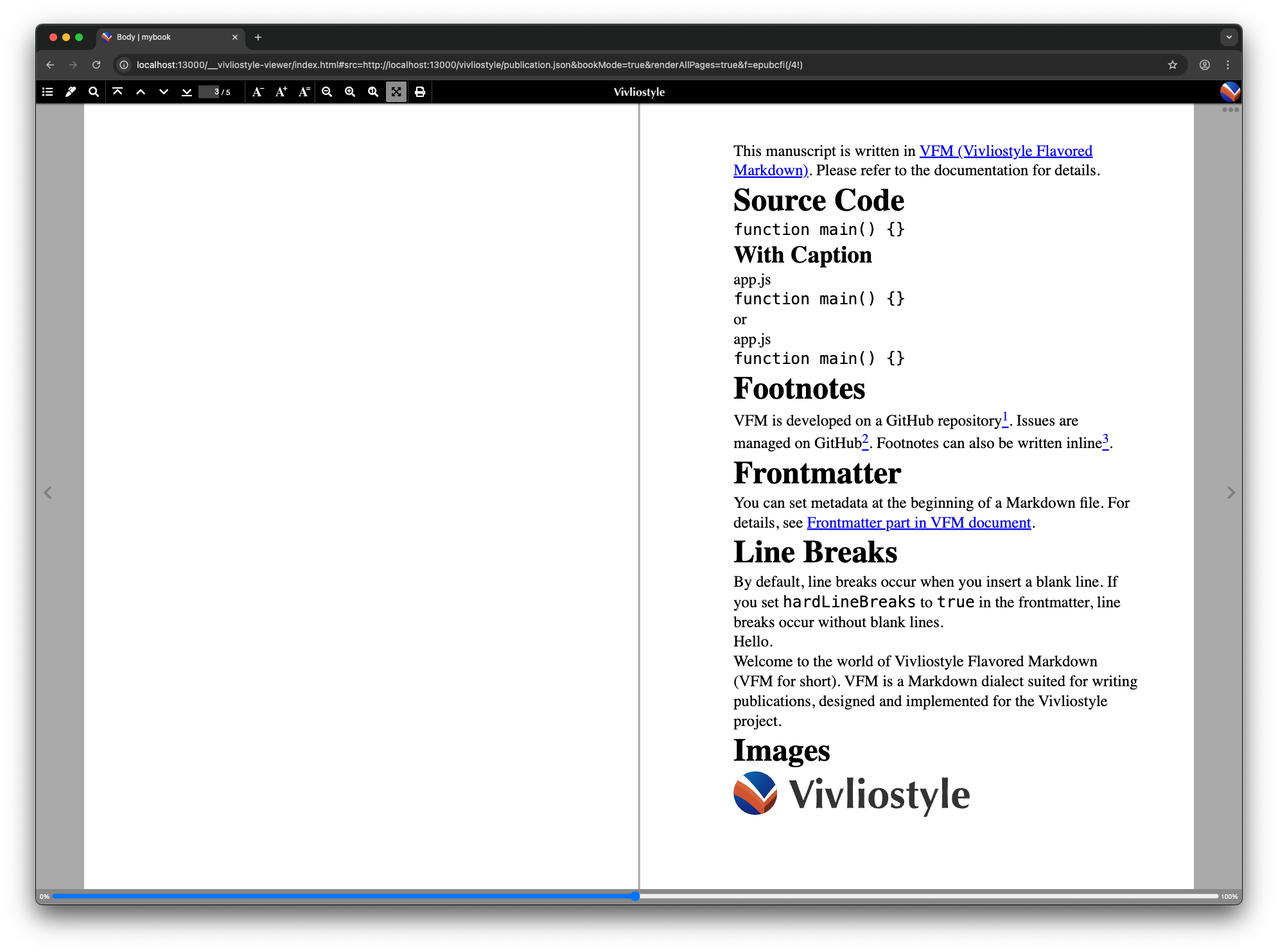
In Vivliostyle, each manuscript file (in this tutorial: preface, body, and afterword) always starts a new page. To start the content of each manuscript file from the left, right, odd, or even page, set break-before on the body element.
body {
  break-before: left;  /* start from a left-hand page */
  break-before: right; /* start from a right-hand page */
  break-before: recto; /* start from an odd-numbered page */
  break-before: verso; /* start from an even-numbered page */
}
Previously the body content started on a left-hand page, but setting break-before: right; adds a blank page on the left so that the body starts on a right-hand page.
Cover Page
The style for the first page across all manuscript files can be set with @page :first, and the first page of each individual manuscript file with @page :nth(1).
Blank Pages
The style for blank pages can be set with @page :blank.
Text Styles
Various text-related settings can be achieved using CSS properties.
Font Family
Use the CSS font-family property.
html {
  font-family: 'Georgia', 'Times New Roman', serif;
}
Using Web Fonts
Vivliostyle CLI can reflect web fonts loaded with @import url() or @font-face directly in the PDF output. Add the following to the top of themes/mytheme/theme_common.css:
@import url('https://fonts.googleapis.com/css2?family=Noto+Serif+JP&display=swap');

html {
  font-family: 'Noto Serif JP', serif;
}
Make sure @import appears before any other rules. Verify that the font is reflected in the preview, and confirm that it is embedded in the built PDF.
Font Size
Use the CSS font-size property.
html {
  font-size: 12pt;
}

ruby > rt { /* ruby annotation */
  font-size: 0.5rem;
}
Line Spacing
Use the CSS line-height property.
p {
  line-height: 1.5;
}
Text Indent
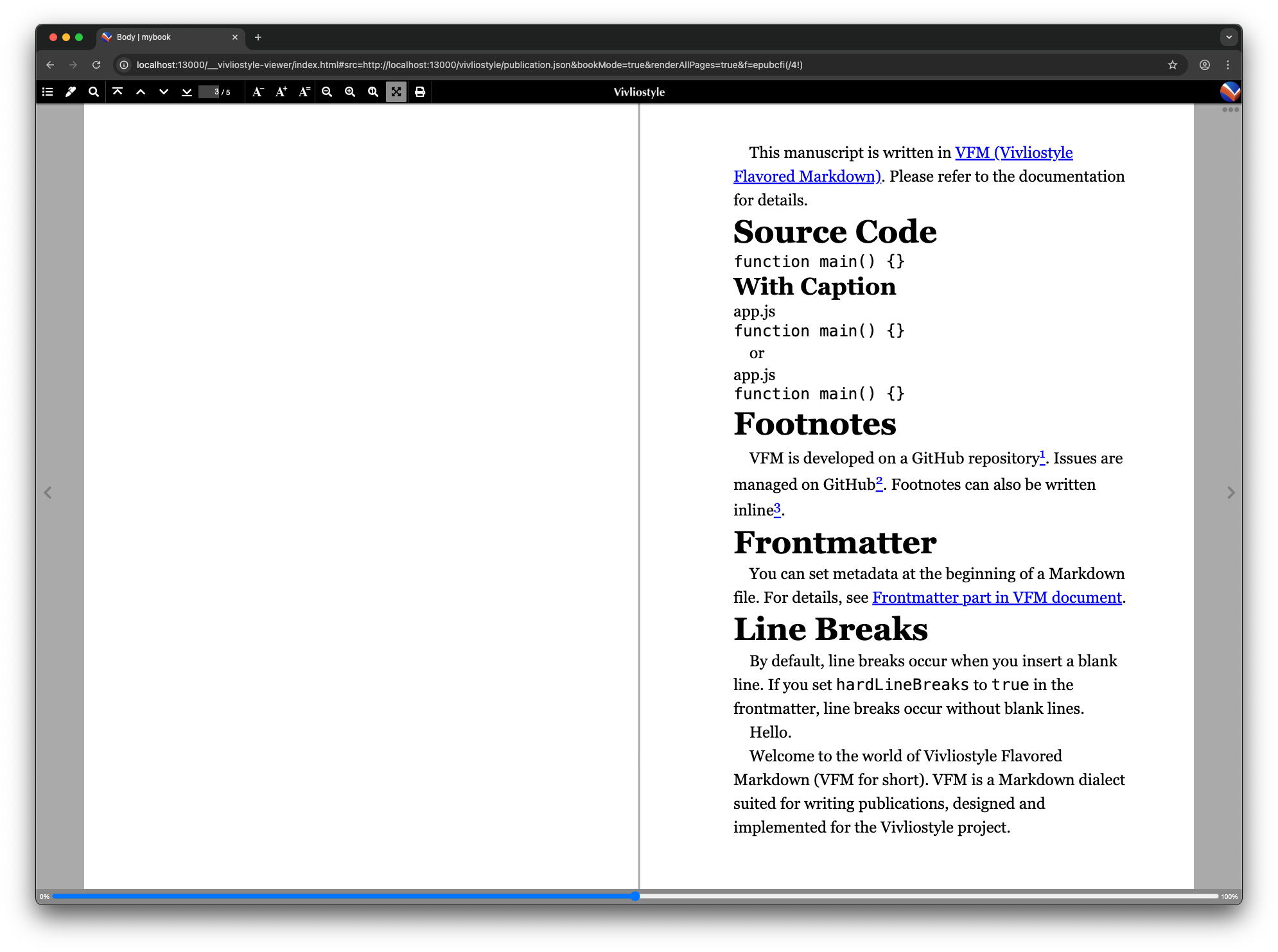
Use the CSS text-indent property.
p {
  text-indent: 1em;
}
Text Alignment
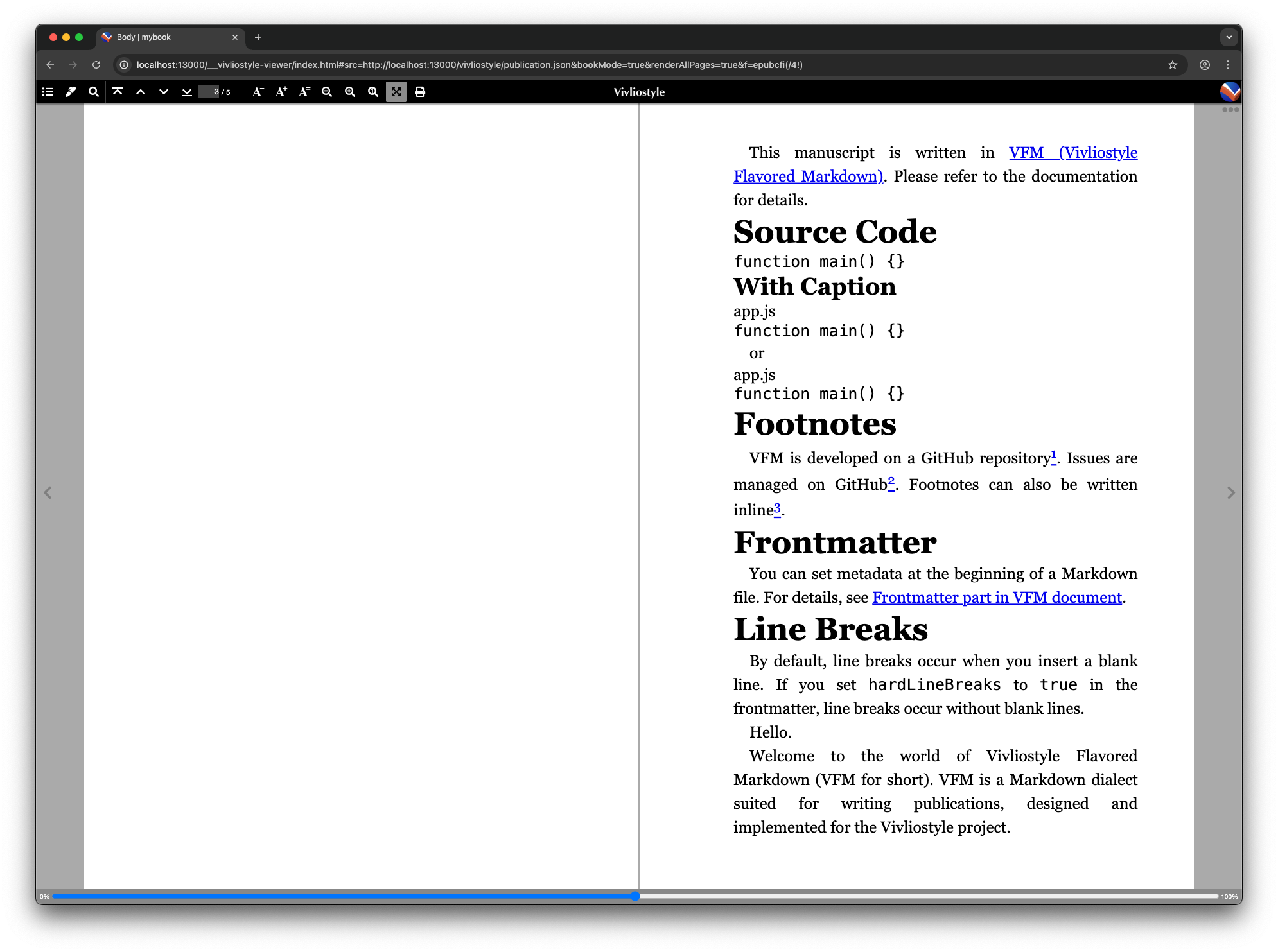
Use the CSS text-align property.
html {
  text-align: justify;
}
Hanging Punctuation
Use the CSS text-spacing-trim and hanging-punctuation properties.
html {
  text-spacing-trim: trim-start;
  hanging-punctuation: allow-end;
}
Reference: Improved line-end handling and page direction support (Vivliostyle Blog)
Widows and Orphans
A widow is a paragraph’s last line appearing alone at the top of a new page; an orphan is a paragraph’s first line appearing alone at the bottom of a page. Use the CSS widows and orphans properties to set the minimum number of lines that must appear at the top or bottom of a page.
html {
  widows: 1;
  orphans: 1;
}
Summary
In this tutorial you defined page and text styles from scratch. Download the theme.css with all the styles described above using the button below.
In the next tutorial, you will configure counters and running heads.