
Tutorial ② Creating a PDF
Create a PDF publication using Vivliostyle.
Goals of This Tutorial
- Understand how to create a publication scaffold
- Understand how to create a PDF
- Understand how to use the preview feature
Creating a PDF
In this tutorial you will use Vivliostyle CLI. You will generate a publication scaffold using the CLI, then modify the sample manuscript and styles included in the scaffold to create your own publication.
Creating a Scaffold (only when starting a new publication)
Generate a publication scaffold. Open your terminal, type the following command, and press Enter. You can replace mybook with any name you like.
npm create book mybook
You will be prompted to enter the information needed to create the scaffold. First, enter the title. If you want to leave it blank, press Enter to accept the default value and move on.
$ npm create book mybook
◇  What's the title of your publication?
│  Mybook
Press Enter to move to the next input. Enter or select your author name and language in the same way.
$ npm create book mybook
◇  What's the title of your publication?
│  Mybook
◇  What's the author name?
│  Jane Smith
◇  What's the language?
│  English
Press Enter to choose a project template. Minimal is a simple scaffold with no content, Basic is a scaffold with a cover page, table of contents, and nine chapters of starter content including guides on VFM syntax and styling. In this tutorial, select Basic.
$ npm create book mybook
◇  What's the title of your publication?
│  Mybook
◇  What's the author name?
│  Jane Smith
◇  What's the language?
│  English
◆  What's the project template?
│  ○ Minimal  ● Basic  ○ Basic (Japanese)
Use the arrow keys to select a theme. In this tutorial, select @vivliostyle/theme-techbook, a theme designed for technical books. It supports code block display and table of contents.
$ npm create book mybook
◇  What's the title of your publication?
│  Mybook
◇  What's the author name?
│  Jane Smith
◇  What's the language?
│  English
◆  What's the project template?
│  ○ Minimal  ● Basic  ○ Basic (Japanese)
◆  What's the project theme?
│  @vivliostyle/theme-techbook
Finally, you are asked whether to install the required dependencies. Selecting Yes will install them automatically.
$ npm create book mybook
◇  What's the title of your publication?
│  Mybook
◇  What's the author name?
│  Jane Smith
◇  What's the language?
│  English
◆  What's the project template?
│  ○ Minimal  ● Basic  ○ Basic (Japanese)
◆  What's the project theme?
│  @vivliostyle/theme-techbook
◆  Should we install dependencies? (You can install them later.)
│  ● Yes  ○ No
Press Enter to start downloading the resources needed to create the publication (this usually completes within a few minutes). When the following message appears, the process is complete.
✔ SUCCESS Successfully created a project at mybook
As instructed, enter the following command in your terminal to navigate into the working directory that was just created.
cd mybook
This step is only needed when creating a new publication. You do not need to repeat it when editing an existing manuscript.
Scaffold Structure
Let’s take a look at the directory structure of the generated scaffold.
mybook/
├── package.json           …command and dependency configuration
├── vivliostyle.config.js  …publication configuration file
├── custom.css             …file for customizing styles
├── cover.css              …cover page style file
└── draft/                 …manuscript directory
    ├── 01_cover.md         …cover page
    ├── 02_introduction.md  …introduction
    ├── 03_vfm-guide.md     …VFM syntax guide
    ├── 04_features.md      …Vivliostyle features
    ├── 05_examples.md      …practical examples
    ├── 06_styling-guide.md …styling guide
    ├── 07_advanced-features.md …advanced features
    ├── 08_page-design.md   …page design
    ├── 09_distribution.md  …output formats and distribution
    ├── cover-image.webp    …cover image
    └── image-with-caption.webp  …image with caption
The draft/ directory contains nine manuscript files. These are starter content that explains how to use Vivliostyle. You can create a PDF from them immediately. The details of vivliostyle.config.js are covered in the next tutorial.
Creating the PDF
The Basic template already includes starter content. Let’s create a PDF from it right away. Enter the following command in your terminal.
npm run build
Running this command causes Vivliostyle to create a PDF through the following steps:
- Convert markdown manuscript files to HTML
- Apply the theme according to the settings in
vivliostyle.config.jsand typeset - Output the PDF
When you run the command, you will see output similar to the following. On the first run, resource downloads will occur (this usually completes within a few minutes).
$ npm run build

> [email protected] build
> vivliostyle build

✔ draft/01_cover.md Cover
✔ draft/02_introduction.md Introduction
✔ draft/03_vfm-guide.md VFM: Vivliostyle Flavored Markdown
✔ draft/04_features.md Vivliostyle Features
✔ draft/05_examples.md Practical Examples
✔ draft/06_styling-guide.md Styling and Customization
✔ draft/07_advanced-features.md Advanced Features and Techniques
✔ draft/08_page-design.md Page Design and Layout
✔ draft/09_distribution.md Output Formats and Distribution
✔ Finished building Mybook.pdf
📗 Built successfully!
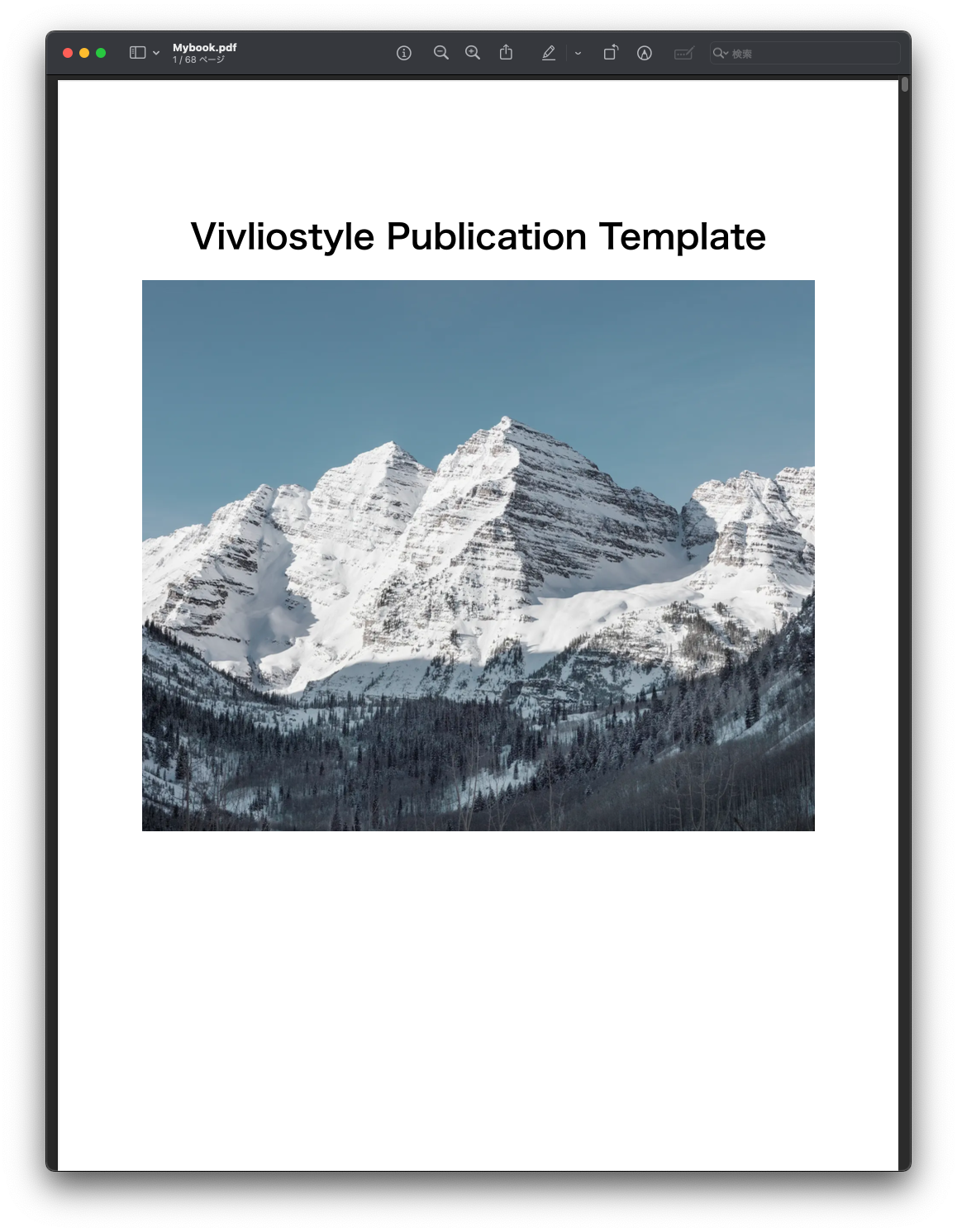
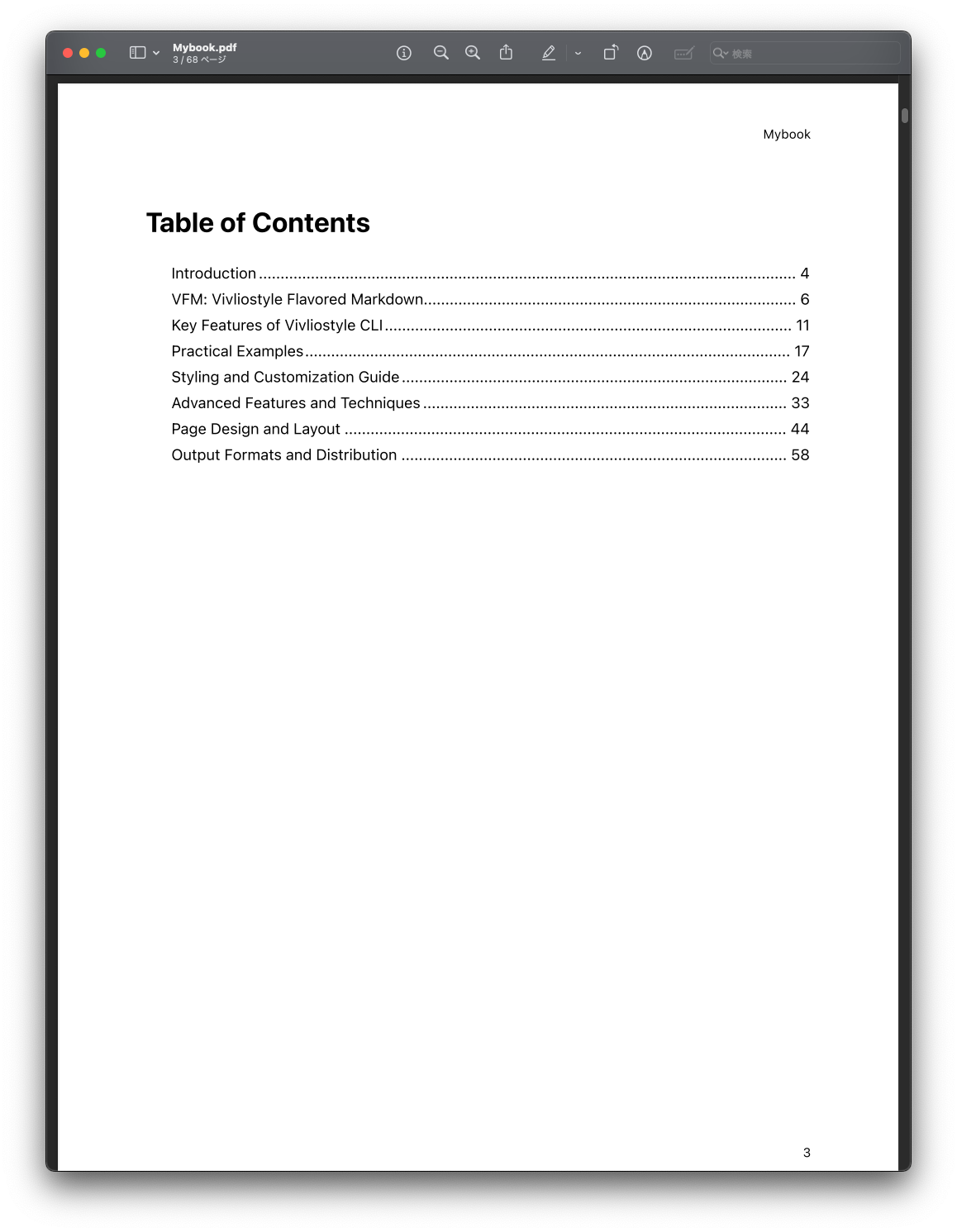
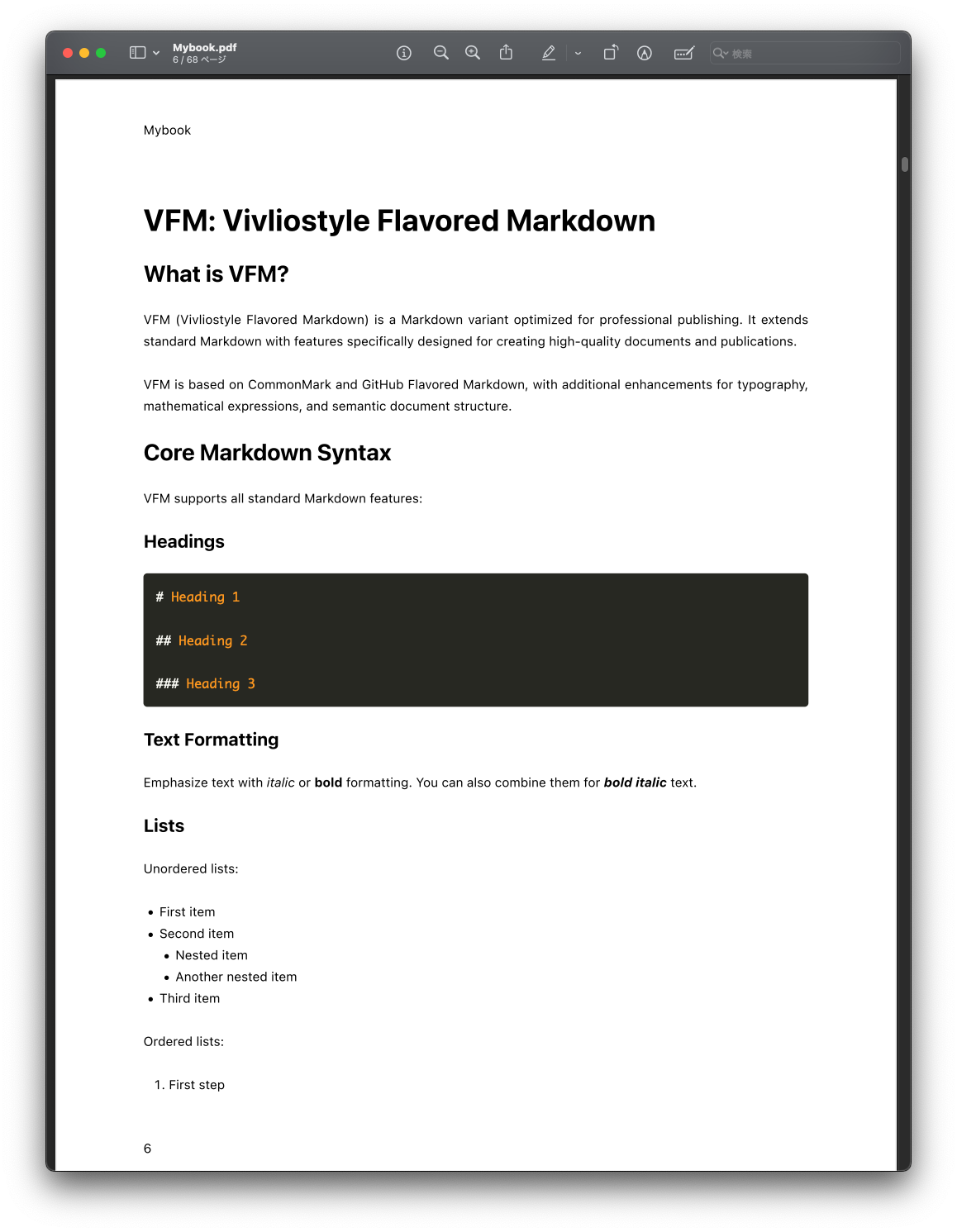
A PDF named Mybook.pdf has been created. Open it to see a technical book with a cover page, table of contents, and nine chapters.
Editing Manuscripts and Using the Preview
Now let’s try editing the starter content while using the preview feature. You could edit a manuscript, run the build command, and open the PDF each time — but running a command every time you make a change is tedious. For more efficient book production, Vivliostyle provides a preview feature that automatically displays a PDF preview as you edit.
Let’s try it. Enter the following command in your terminal.
npm run preview
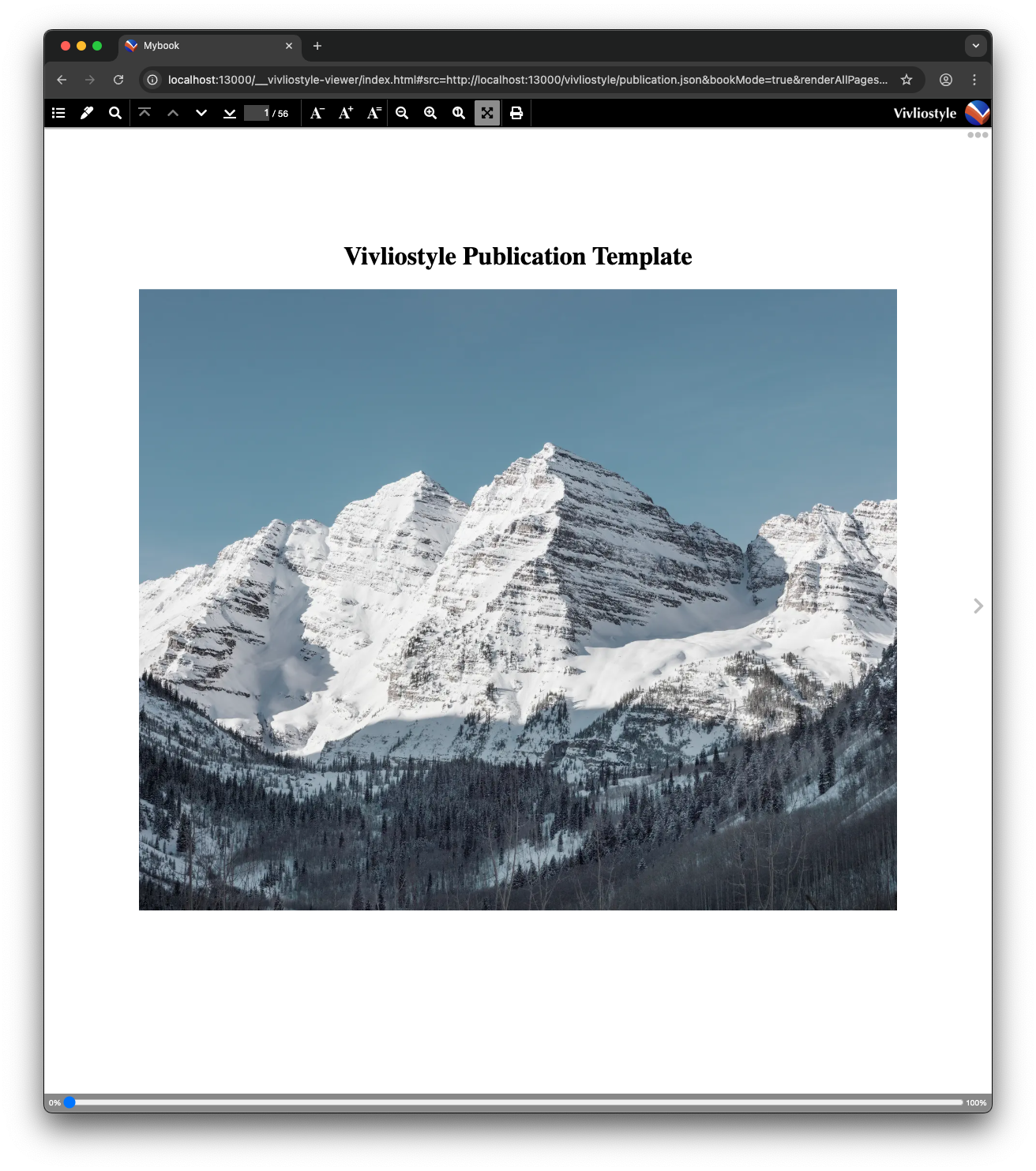
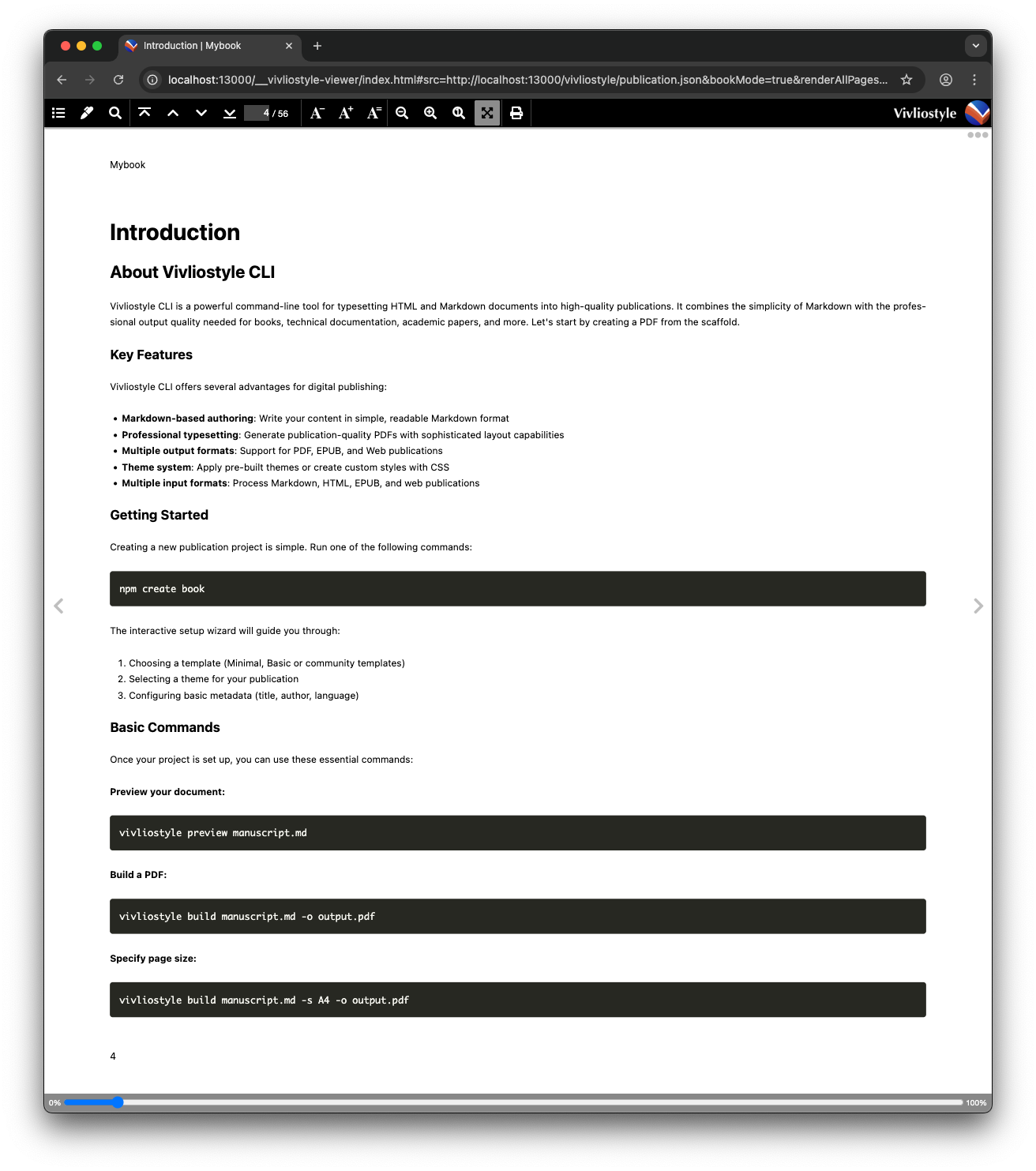
A browser window will open and display a preview showing the cover page, table of contents, and all nine chapters.
While keeping the preview open, open draft/02_introduction.md and change part of the text, then save. As an example, try adding a sentence like the following:
Before:
This book introduces the publishing workflow using Vivliostyle CLI.
After:
This book introduces the publishing workflow using Vivliostyle CLI.
Let's start by creating a PDF from the scaffold.
When you save, the preview will update automatically to reflect your changes.
Summary
Through this tutorial, you created a PDF from starter content and learned how to verify your edits using the preview. In actual writing, your workflow will look something like this:
- Create the scaffold
- Run
npm create book mybookin the terminal - Select the Basic template and @vivliostyle/theme-techbook theme
- Run
- Review the generated file structure
- Create the PDF
- Run
npm run buildin the terminal
- Run
- Start the preview
- Run
npm run previewin the terminal
- Run
- Edit your manuscripts
- The preview updates automatically when you save changes
Because the Basic template includes starter content, you can create a PDF immediately. In the next tutorial, you will learn how to replace that starter content with your own manuscript and customize the styles.