
Tutorial ⑦ Creating a Table of Contents
Use Vivliostyle features to create a table of contents.
Goals of This Tutorial
- Create a table of contents automatically
- Create a table of contents manually
- Create a page-numbered TOC using
target-counter()
Automatic Table of Contents
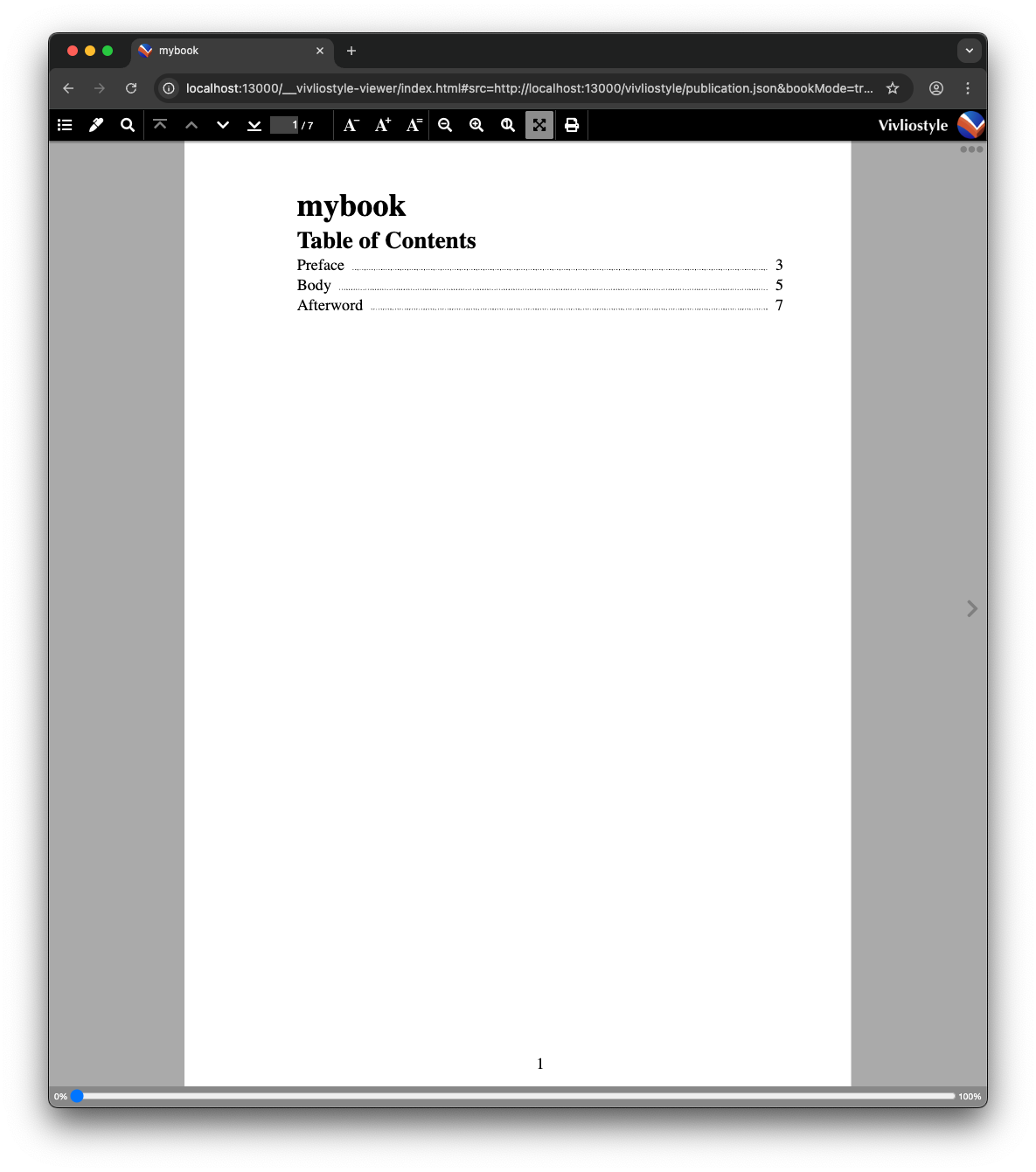
You can use Vivliostyle’s built-in feature to generate a table of contents automatically. The table of contents will display:
- The book title
- The title of the TOC page (default: “Table of Contents”)
- The title of each manuscript file with a link
Add the following to vivliostyle.config.js:
// @ts-check
import { defineConfig } from '@vivliostyle/cli';

export default defineConfig({
  // ...
  toc: {
    title: 'Table of Contents',
  },
});
Run the following command:
npm run preview
A table of contents is automatically added to the first page of the PDF. You can change toc.title to use any title you like for the TOC page.
Including Headings from Manuscript Files in the TOC
In addition to references to manuscript files, the table of contents can also include headings from within those files. To do this, set sectionDepth to a value from 1 to 6 (representing which heading level to include, from h1 to h6). The following example includes h1 through h3 headings in the TOC.
  toc: {
    title: 'Table of Contents',
    sectionDepth: 3,
  }
Reference: Vivliostyle CLI Documentation (docs.vivliostyle.org)
Manual creation of table of contents and reference to counters
To create a table of contents file manually, follow these steps.
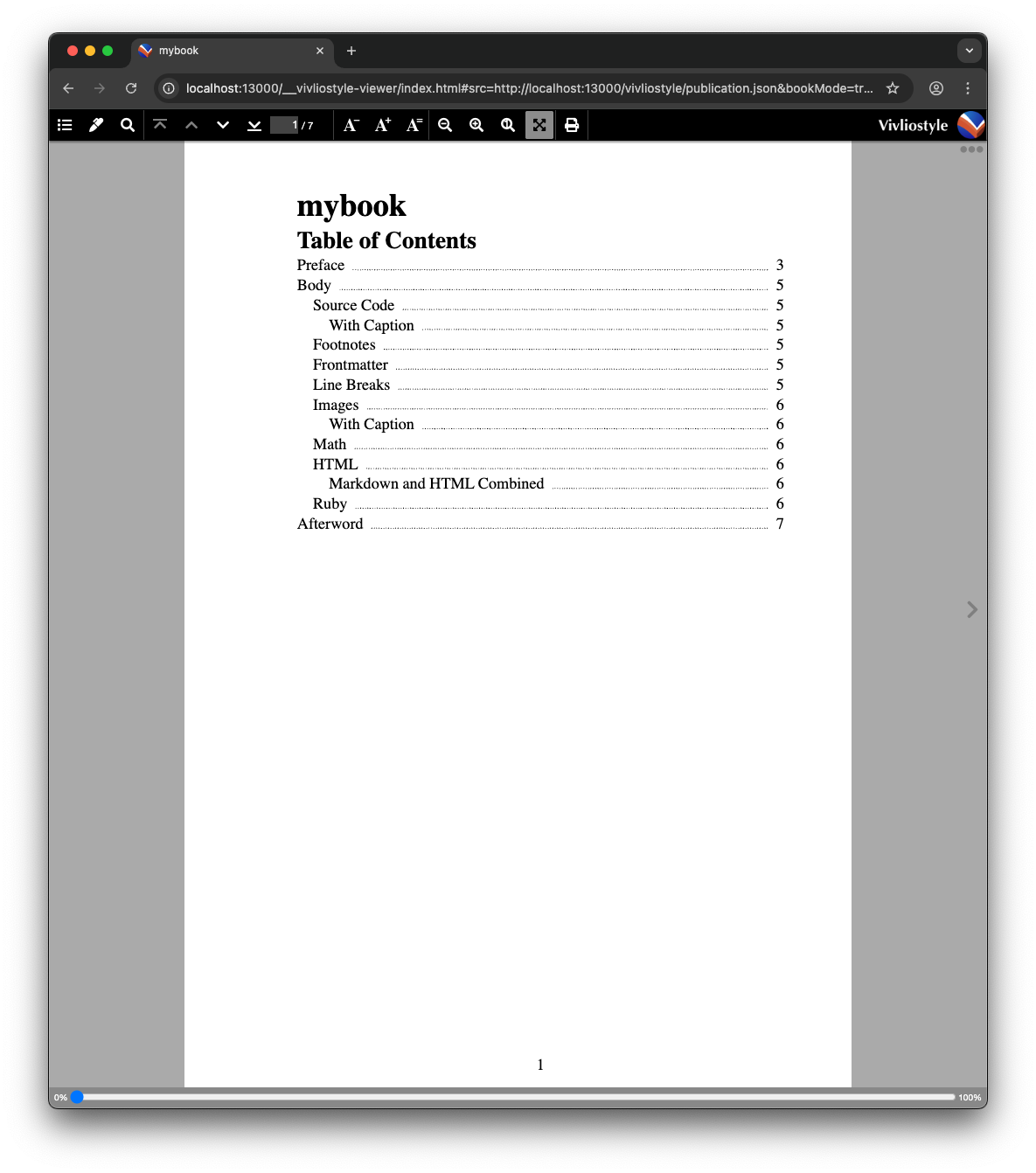
Open your text editor and create a file named manuscripts/toc.md. The value "doc-toc" for the role attribute is defined by the Digital Publishing WAI-ARIA specification. Vivliostyle recognizes elements with this attribute (typically nav) as a table of contents, treats the linked HTML files as a single book, and enables navigation in the TOC panel of the preview screen.
<nav id="toc" role="doc-toc">

1. [Preface](preface.html)
1. [Body](body.html)
    1. [Source Code](body.html#code)
        1. [With Caption](body.html#code-with-caption)
    1. [Footnotes](body.html#footnote)
    1. [Frontmatter](body.html#frontmatter)
    1. [Line Breaks](body.html#newline)
    1. [Images](body.html#figure)
        1. [With Caption](body.html#figure-with-caption)
    1. [Math](body.html#math)
    1. [HTML](body.html#html)
        1. [Mixing Markdown and HTML](body.html#html-with-markdown)
    1. [Ruby](body.html#ruby)
1. [Afterword](afterword.html)

</nav>
When creating your own TOC file, you need to add an entry in vivliostyle.config.js. Specify rel: 'contents' for the TOC file.
// @ts-check
import { defineConfig } from '@vivliostyle/cli';

export default defineConfig({
  // ...
  entry: [
    {
      path: 'toc.md',
      rel: 'contents',
    },
    'preface.md',
    // ...
  ],
});
Also add the following CSS for the table of contents. To automatically insert the page number of the link target for each TOC entry, use the target-counter() function. target-counter(attr(href), page) returns the page number of the page on which the linked element is placed.
#toc li {
  list-style: none;
}

#toc li ol {
  padding-left: 1em;
}

#toc li a {
  display: inline-flex;
  width: 100%;
  text-decoration: none;
  color: currentColor;
  align-items: baseline;
}

#toc li a::before {
  margin-left: 0.5em;
  margin-right: 0.5em;
  border-bottom: 1px dotted;
  content: '';
  order: 1;
  flex: auto;
}

#toc li a::after {
  text-align: right;
  content: target-counter(attr(href), page);
  align-self: flex-end;
  flex: none;
  order: 2;
}
Summary
In this tutorial you created a table of contents and defined its styles. Download the vivliostyle.config.js, manuscript files, and style files used in this tutorial using the buttons below.